Stop Typing. Start Uploading. — How AI Invoice Analysis Is Ending Manual Data Entry
Finance teams waste thousands of hours manually entering invoice data. Expense AI's two-stage AI pipeline — Azure Document Intelligence + GPT-4.1 — reads, extracts, and categorises every invoice automatically. Here's exactly how it works.
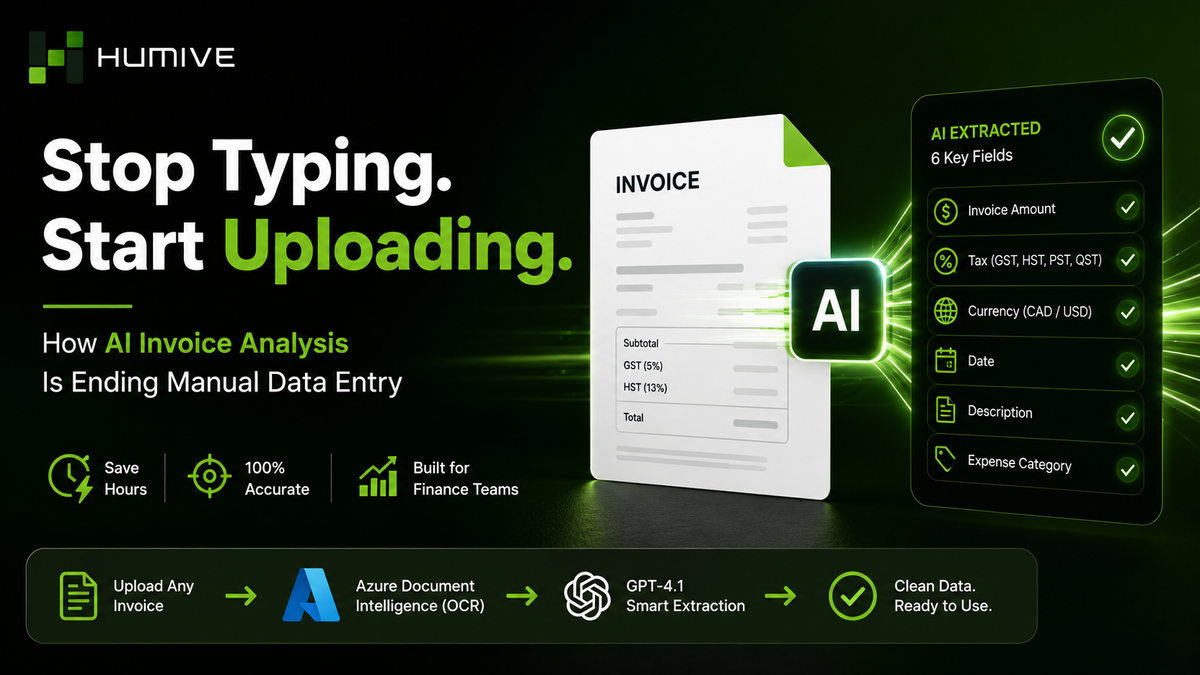
Table of Contents
- The Invoice Problem Nobody Talks About
- What Is AI Invoice Analysis?
- How Expense AI Works — The Two-Stage Pipeline
- What Makes Expense AI Different
- The Downstream Impact of Getting Invoice Analysis Right
- Getting Started with Expense AI
- Frequently Asked Questions
The Invoice Problem Nobody Talks About
Every minute your team spends typing invoice data is a minute your business is paying for human error.
If you run a project-based business, you already know this scene. End of the month arrives. Someone on your finance team opens their email, finds forty invoices — PDFs from Canadian suppliers, image attachments from US vendors, photographed receipts from site visits — and spends the next two hours manually copying numbers into a spreadsheet or ERP. Invoice amount here. Tax amount there. Category from a dropdown. Currency guessed by eye.
It is slow. It is expensive. And it is almost always wrong at least once.
Manual invoice data entry is one of the most persistent inefficiencies in accounting and expense management — not because no one has noticed it, but because until recently, the technology to genuinely eliminate it did not exist. Rule-based OCR tools could read a clean PDF but failed on scanned images. Template-based extractors worked only for vendors whose invoices matched a preset format. Nothing could reliably handle real-world documents in the messy variety they actually arrive in.
That has changed. AI invoice analysis — specifically the combination of document intelligence and large language model reasoning — now makes it possible to upload any invoice or receipt and have every key field extracted automatically, correctly, and within seconds.
This is what Expense AI was built to do.
What Is AI Invoice Analysis?
And why it's not the same as the OCR you tried five years ago.
AI invoice analysis is the use of machine learning models and large language models to automatically read, interpret, and extract structured data from invoices and receipts — regardless of their format, layout, or origin.
This is meaningfully different from older optical character recognition tools. Basic OCR reads characters on a page and outputs raw text. It cannot reason about what that text means. It cannot distinguish a subtotal from a grand total, identify which tax line is GST versus HST, or understand that a US address on a vendor header means the amount is in USD rather than CAD.
AI invoice analysis adds a reasoning layer on top of character recognition. The system not only reads what is on the document — it understands it. It knows the difference between a tax-exclusive subtotal and a tax-inclusive total. It recognises Canadian tax structures. It infers currency from context. It categorises an expense based on what was actually purchased, not just which vendor it came from.
For finance teams, the practical outcome is simple: upload a document, and the data is ready. No templates to configure. No vendor-specific rules to maintain. No manual corrections when a supplier changes their invoice layout.
💡 AI invoice analysis is not a smarter version of old OCR software. It combines optical character recognition with large language model reasoning — so it does not just read documents, it understands them.
How Expense AI Works — The Two-Stage Pipeline
Every invoice goes through two AI stages. Here's what happens inside each one.
Expense AI does not rely on a single model to do everything. It uses a deliberate two-stage pipeline — each stage doing what it is best at. Together they handle the full journey from raw document to clean, structured expense data.
Stage 1 — Document Intelligence (Azure OCR)
When a user uploads an invoice or receipt — whether it is a digital PDF, a scanned image, or a photograph taken on a phone — Stage 1 begins immediately.
Azure Document Intelligence, using Microsoft's prebuilt invoice model, reads the uploaded file and extracts all raw text content. This stage handles the physical reading of the document. It works across file types and quality levels — a crisp emailed PDF and a slightly blurry photographed receipt both get processed by the same model.
The output of Stage 1 is structured raw text: everything that appears on the document, made readable by a machine and passed to the next stage.
This step exists because large language models cannot natively read image files or PDFs the way a human reads a page. Azure Document Intelligence bridges that gap, turning a visual document into machine-readable content that GPT-4.1 can then reason about.
Stage 2 — Smart Field Extraction (GPT-4.1)
Once Stage 1 has produced the raw text, Stage 2 takes over. Azure OpenAI GPT-4.1 reads that content and intelligently extracts six structured fields — the six pieces of information that matter most for expense management and financial reporting.
⚡ Six fields. Extracted automatically. No manual input required — Invoice Amount, Tax, Currency, Date, Description, and Expense Category.
Invoice Amount
GPT-4.1 extracts the pre-tax subtotal for Canadian-dollar invoices, or the full total for US-dollar invoices, depending on what the document contains. The model distinguishes between a pre-tax subtotal and a tax-inclusive total — a distinction that matters enormously for Canadian businesses tracking input tax credits.
Invoice Tax
This is where Expense AI separates itself from every generic invoice tool on the market. Rather than treating all tax as a single combined figure, GPT-4.1 identifies Canadian taxes — GST, HST, PST, and QST — and records them as a distinct line item, separate from US sales tax. For Canadian businesses, this is not a nice-to-have. Claiming input tax credits, filing quarterly returns, and producing accurate financial statements all depend on knowing precisely which Canadian tax type applied to each expense.
Invoice Currency
Rather than requiring the user to select a currency before uploading, GPT-4.1 reads contextual signals embedded in the document itself — vendor address, country of origin, currency symbols, and other cues — and determines the correct currency automatically. A Canadian supplier's invoice is recognised as CAD. A US-based SaaS vendor's invoice is correctly identified as USD. This eliminates a common and costly silent error: a USD amount recorded as CAD without anyone noticing until reconciliation.
Invoice Date
The model reads the invoice date from whatever format appears on the document and outputs it in a single standardised format. Whether the date is written as "April 3, 2025," "03/04/2025," or "2025-04-03," the output is consistent every time. Date inconsistencies that break rule-based systems are handled naturally by language model reasoning.
Invoice Description
Instead of leaving the description field blank for a human to fill in later, GPT-4.1 generates a concise, human-readable summary of what the expense was for. It reads the vendor name, the line items, and the overall context of the document and produces a description that makes sense to anyone reviewing the expense record days or weeks later.
Expense Category
This is the most project-aware feature in the pipeline. Rather than classifying expenses against a fixed, generic list, Expense AI maps each expense to the specific category list that belongs to the active project. A construction project with categories like Site Materials, Subcontractor Labour, and Equipment Rental receives correctly mapped expenses without any manual recategorisation. A marketing agency with categories like Media Spend, Creative Production, and Client Entertainment gets the same accuracy for its own taxonomy. The AI adapts to each project's structure.
What Makes Expense AI Different
Most invoice tools fail in three specific areas. Expense AI was built with all three as core requirements.
Built for Canadian Tax Complexity
Canada's tax system is genuinely more complex than a flat sales tax rate. GST and HST rates vary by province. QST applies specifically in Quebec. PST exists in provinces that have not harmonised with the federal GST. A business operating across multiple provinces — or working with vendors from different regions — receives invoices reflecting this full range of tax structures.
An invoice processing tool that lumps all taxes into a single "tax" field is nearly useless for Canadian compliance purposes. Input tax credit claims require knowing exactly which tax type was charged. Provincial reporting requires the same granularity. Expense AI identifies each Canadian tax type individually, records them separately, and does this automatically on every document — no manual tagging, no rule configuration, no exceptions.
🇨🇦 GST. HST. PST. QST. Expense AI identifies every Canadian tax type separately — automatically — on every invoice. Critical for input tax credits, provincial filings, and accurate financial reporting.
True Multi-Currency Intelligence
Most expense tools either require the user to specify a currency before uploading, or they default to a single currency setting and apply it universally. Both approaches create errors when dealing with cross-border vendors.
Expense AI determines currency from the document itself — the same way an experienced accountant glances at a vendor's address and immediately knows whether the amount is in CAD or USD. No dropdowns. No guessing. The AI reads the signals that are already on the page and makes the correct call every time.
For businesses sourcing from both Canadian and US suppliers — using US-based software, paying US-based contractors, purchasing from Canadian vendors — this automatic currency detection prevents a class of silent errors that compound painfully across months of financial records.
Project-Specific Categorisation
Generic expense categories serve personal finance apps. They do not serve project-based businesses.
A construction company does not need "Supplies" as a category — it needs "Site Materials," "Concrete and Formwork," and "Temporary Structures." A consulting firm does not need "Travel" — it needs "Client Travel — Billable" and "Internal Travel — Non-Billable." A property developer does not need "Services" — it needs "Architectural Fees," "Engineering Review," and "Permit Costs."
Expense AI connects to each project's own category list. When an invoice is uploaded against a project, the AI matches the expense to whichever project category fits best. Budget tracking becomes accurate. Cost-per-project reporting becomes reliable. Finance teams stop spending time recategorising expenses that the AI should have categorised correctly the first time.
Bulk Upload for High-Volume Teams
Expense AI handles multiple documents in a single upload. Teams dealing with end-of-month reconciliation, project closeouts, or large vendor batches can upload everything at once. The pipeline processes each document, and results appear as they complete — no waiting for a full batch to finish before seeing the first results.
Real-Time Field Population
The interface does not make users wait for a processing complete notification before showing results. As the AI finishes extracting each field, the UI updates live. Users watch fields populate in real time, within seconds of uploading. This immediate feedback means errors or unexpected results are visible instantly — before the expense moves further into an approval workflow.
"The cost of manually processing a single invoice — factoring in labour, errors, and delays — ranges from $12 to $30. Automated invoice processing brings that cost down dramatically while simultaneously reducing error rates and accelerating approval cycles." — Accounts Payable Automation Industry Research
The Downstream Impact of Getting Invoice Analysis Right
Accurate invoice data from the moment of upload changes everything that follows.
The benefits of automated invoice analysis extend well beyond saving time on data entry — though that alone is significant across any organisation processing more than a handful of invoices per month.
When invoice data is extracted accurately and automatically, the downstream effects compound across the business. Approval workflows move faster because the data is already populated when a manager opens the expense. Budget reports are more accurate because expenses are categorised correctly the first time. Audit trails are cleaner because every field has a consistent, machine-generated source. Tax filings are smoother because Canadian taxes have been tracked separately and correctly throughout the year.
For growing businesses — those adding projects, adding vendors, and adding team members — scalability matters as much as immediate time savings. A manual process that functions at fifty invoices per month begins to break at five hundred. An AI-powered process handles both volumes identically, with no additional headcount required.
The shift from manual to automated invoice analysis is not simply a productivity improvement. It is a structural change in how financial data enters a business — from inconsistent and human-dependent to accurate, immediate, and automatic.
📊 Faster approvals. Cleaner audit trails. Accurate project budgets. Smoother tax filings. Getting invoice data right at the point of upload changes everything that comes after it.
Getting Started with Expense AI
No templates. No configuration. No vendor-specific setup. Just upload and go.
Using Expense AI for invoice analysis requires no training, no configuration of extraction rules, and no custom templates for different vendor formats. The AI adapts to whatever document is uploaded.
A one-page receipt from a local materials supplier and a multi-page invoice from a US-based software vendor are both handled by the same pipeline, with no setup required between them.
The workflow is direct: upload one or more invoices or receipts, select the project they belong to, and let the AI extract the fields. Within seconds, the data is ready for review. Confirm it, adjust anything if needed, and move on to the next task.
That is the promise of modern invoice analysis: not just faster data entry, but the elimination of manual data entry as a category of work entirely.
For More Further Information Contact Us Here :- humive.com
Frequently Asked Questions
What file types does Expense AI support for invoice analysis?
Expense AI supports PDF files and image-based documents including JPEG, PNG, and scanned image formats. Azure Document Intelligence — the OCR layer that powers Stage 1 of the pipeline — is built to handle both clean digital PDFs and lower-quality scanned or photographed receipts. A document does not need to be a perfectly formatted digital file to be processed accurately. Whether an invoice arrives as an emailed PDF attachment, a scanned copy, or a photograph taken on a mobile phone, the extraction pipeline processes it the same way. Bulk uploads allow multiple document types to be submitted in a single batch, so teams do not need to sort or separate files before uploading.
How does Expense AI separate Canadian taxes like GST, HST, PST, and QST from other charges?
Most invoice processing tools treat all taxes as a single combined field labelled something like "tax total." Expense AI uses GPT-4.1 to read the tax lines in full context and identify specifically which Canadian tax types are present on each invoice — GST, HST, PST, or QST — and records them as a separate line item, distinct from the invoice's base amount and from US sales tax. This distinction is not cosmetic. Canadian businesses claiming input tax credits need to know exactly which tax type was charged and at what amount. Provincial tax reporting requires the same granularity. Expense AI handles this identification automatically, on every uploaded document, without any manual tagging or rule configuration by the user.
Can Expense AI tell the difference between a Canadian dollar and a US dollar invoice without me selecting it manually?
Yes — and this is one of the most practically valuable features in the pipeline. Rather than requiring the user to select a currency from a dropdown before uploading, Expense AI's GPT-4.1 stage reads contextual signals embedded in the invoice itself — vendor address, country of origin, currency symbols, and other document-level cues — and determines the correct currency automatically. A Canadian supplier's invoice is recognised as CAD. An invoice from a US-based vendor is correctly identified as USD. This automatic currency detection eliminates a common and costly silent error in cross-border expense tracking: a USD amount inadvertently recorded as CAD, or vice versa, that goes unnoticed until reconciliation and then requires hours to trace and correct.
What is project-specific expense categorisation and how is it different from a standard category list?
Standard expense management tools assign every uploaded invoice to the same fixed set of generic categories — things like Travel, Meals, Equipment, or Supplies — regardless of which project the expense belongs to or what the business actually tracks. Expense AI works differently. When an invoice is uploaded against a specific project, the AI reads the category list that has been defined for that project and classifies the expense against those custom categories. A construction project with categories like Site Materials, Subcontractor Labour, and Equipment Rental receives correctly mapped expenses without any manual recategorisation step. A marketing agency with categories like Media Spend, Creative Production, and Client Entertainment gets the same accuracy for its own taxonomy. This project-aware categorisation means budget tracking and cost-per-project reporting are accurate from the moment an invoice is uploaded — not after a finance team member manually corrects the category later.